
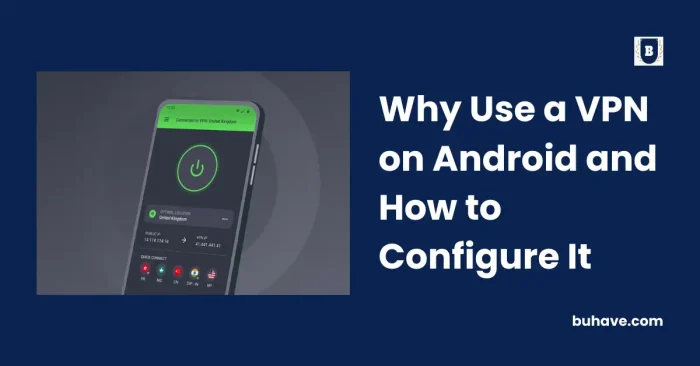
A VPN (Virtual Private Network) is a practical tool that enables you to use the internet discreetly and privately. It obscures your IP address and encrypts your internet data, making it harder for others to track your online activities. Using a VPN for business or travel is very common nowadays. Here’s why and how to set up a VPN on your Android device. For quick checks of your setup, see the Ensuring Security: The Importance of VPN Test Checker article.
Why set up a VPN on Android?
Security:
A VPN encrypts your online traffic, making it difficult for hackers and observers to intercept your data.
Protection:
By hiding your IP address, a VPN makes it more difficult for advertisers, ISPs, and other outside organizations to monitor your online activities.
Access to geo-restricted content:
A VPN can let you get around restrictions and access content that is blocked in your area. For travelers, Essential Tools for Traveling and Living Abroad can help you stay connected while abroad.
Public Wi-Fi security:
When connected to public Wi‑Fi networks, which are often unstable and prone to attacks, a VPN protects your data by scrambling it and masking your IP address.
The best way to configure a VPN for Android
Choose a VPN provider:
The first step is to choose a VPN provider. There are many options available, but it’s important to choose a reputable provider that offers reliable service, whether it provides a free VPN or not. If you’re exploring privacy options beyond VPNs, you might also consider AI tools for online privacy.
Download and install the VPN program:
Download and install the VPN provider’s app from their website or the Google Play Store once you’ve decided on one.
Create an account
Follow the instructions to create an account when pursuing VPN management. You’ll typically need to provide an email address and choose a password.
Choose and connect to a server
Choose a server region and launch the VPN program. Once you’ve decided on a server, use the interface button to set up a connection.
Verify your connection
While connected to the VPN, test your connection to make sure everything is functioning as it should. To check for DNS leaks or IP address spills, use websites like dnsleaktest.com or ipleak.net.
It’s important to be aware that some providers may require additional setup steps, such as creating a VPN profile or adjusting your Android device’s organizational settings. Be sure to carefully read the setup instructions provided by your VPN provider to ensure the VPN is correctly configured.
Installing a VPN on your Android device is a straightforward process that may add an extra layer of security and privacy for your browsing. For more privacy resources, you can also explore AI tools for online privacy.
Does iTop VPN meet these requirements?
The iTop VPN service covers the above objectives (security, geo‑restricted content access, and protection on public Wi‑Fi) since it aligns with key requirements, such as
Strong encryption:
To ensure that your online traffic is safe, the VPN should use strong encryption standards like AES-256.
No-logging policy:
The VPN should have a strict no-logging policy that ensures that your online activities are not monitored or recorded.
Many server locations:
The VPN should have numerous server locations in different countries so you can bypass geo-restrictions and access content from across the world.
Prompt and dependable support should be available in the event of minor personal or connection drops.
iTop VPN complies with these specifications, it is a good option for setting up a VPN on your Android device. To make sure you’re getting the best support for your needs, you should compare several VPN services before choosing one. For additional privacy considerations, you may also explore AI tools for VPN alternatives.
How do you install iTop VPN on an Android device?
Installing iTop VPN on an Android device is as follows:
Install the iTop VPN app
Search for “iTop VPN” in the Google Play Store on your Android device. Install the app after downloading it.
Create an account
Open the program when it has been installed, create an account by entering your email address, and then choose a password.
Select a server
Once you’ve signed up, launch the program and select a server from the list of available servers. You may also choose “Auto” to let iTop VPN identify the optimal server location for you.
Connect to the VPN
After selecting a server region, touch the “Interface” button to establish a connection to the VPN.
Verify your connection
Once the VPN is connected, you may visit a website that displays your IP address to verify that your online traffic is being encrypted and routed over the VPN. You should notice a different IP address from your actual location.
All there is to it! You’ve successfully installed iTop VPN on your Android device. Keep in mind that some VPNs may require additional setup steps, such as configuring your Android device’s organizational settings. You can request assistance from iTop VPN’s customer support if you have any problems or questions.
Final thoughts
In conclusion, setting up a VPN on your Android device can provide additional security, safety, and access to geographically restricted material when using the internet.
One of several VPN services that can deliver these benefits is iTop VPN. While setting up a VPN, it’s important to choose a reputable provider and ensure strong encryption standards, a strict no-logging policy, many server locations, and quick and reliable support. You may install iTop VPN on your Android device and benefit from a VPN by using the methods outlined in this article.